Features

Everything Kestrel does.

One tool for the whole job: take the shot, say what you mean on it, hide what shouldn't travel, record the fix, and find it all again later. No account, and your captures stay plain files you own.

Capture

Pick the area first. Decide what to do with it second.

Press one key and drag, or hover a window and click. The bar that appears offers Capture, Scroll, Record and Grab text for that exact area, so you never pick a mode before you know what you need.
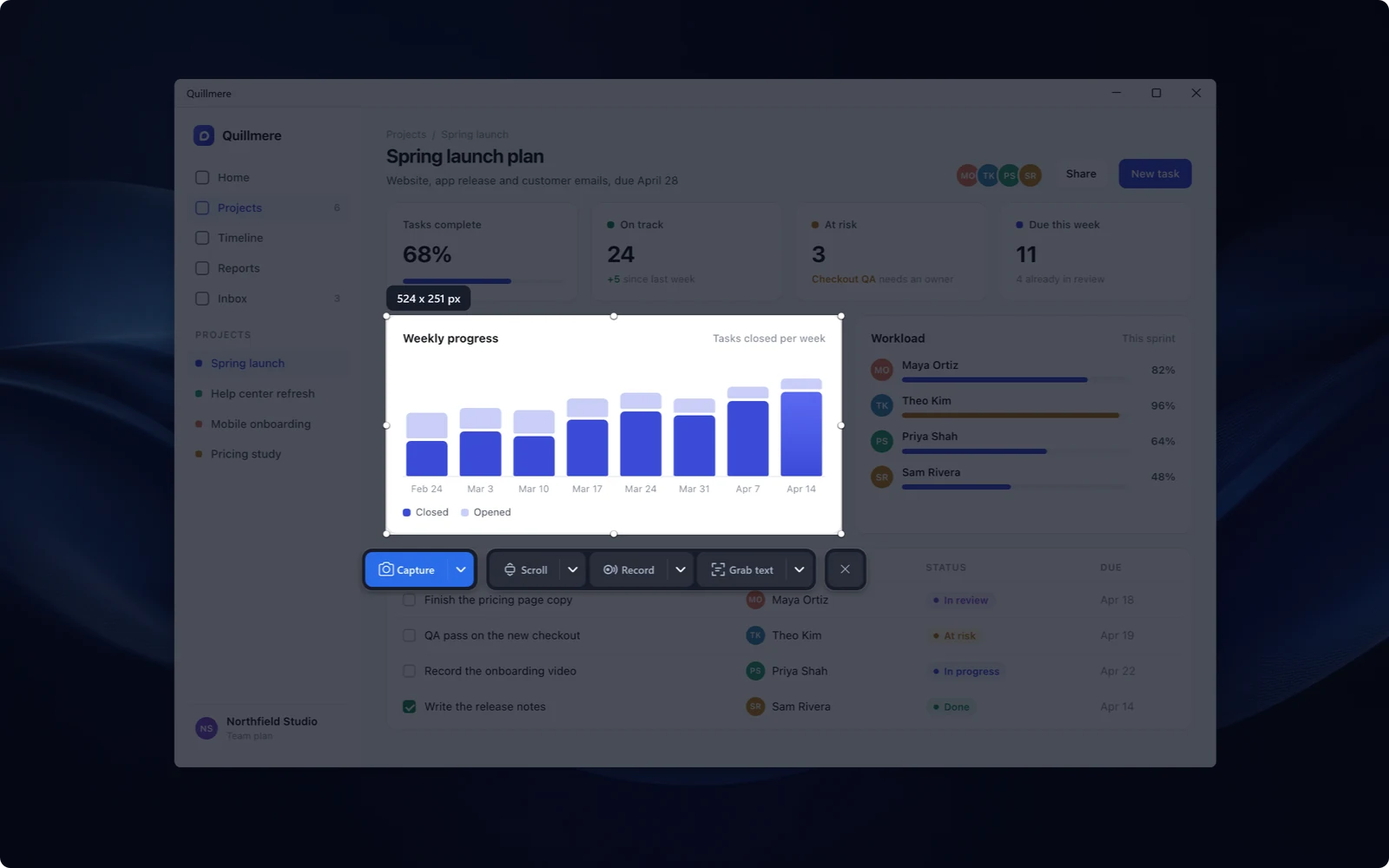
A selected panel inside a sample window on Windows, with the Kestrel action bar showing Capture, Scroll, Record and Grab text.
Scrolling capture

Grab the whole page, not just the screen.

Capture a long page, chat or document that runs off the bottom of your monitor. Kestrel scrolls it for you and stitches one clean image, fixing the seams where a fixed header would otherwise repeat down the page.
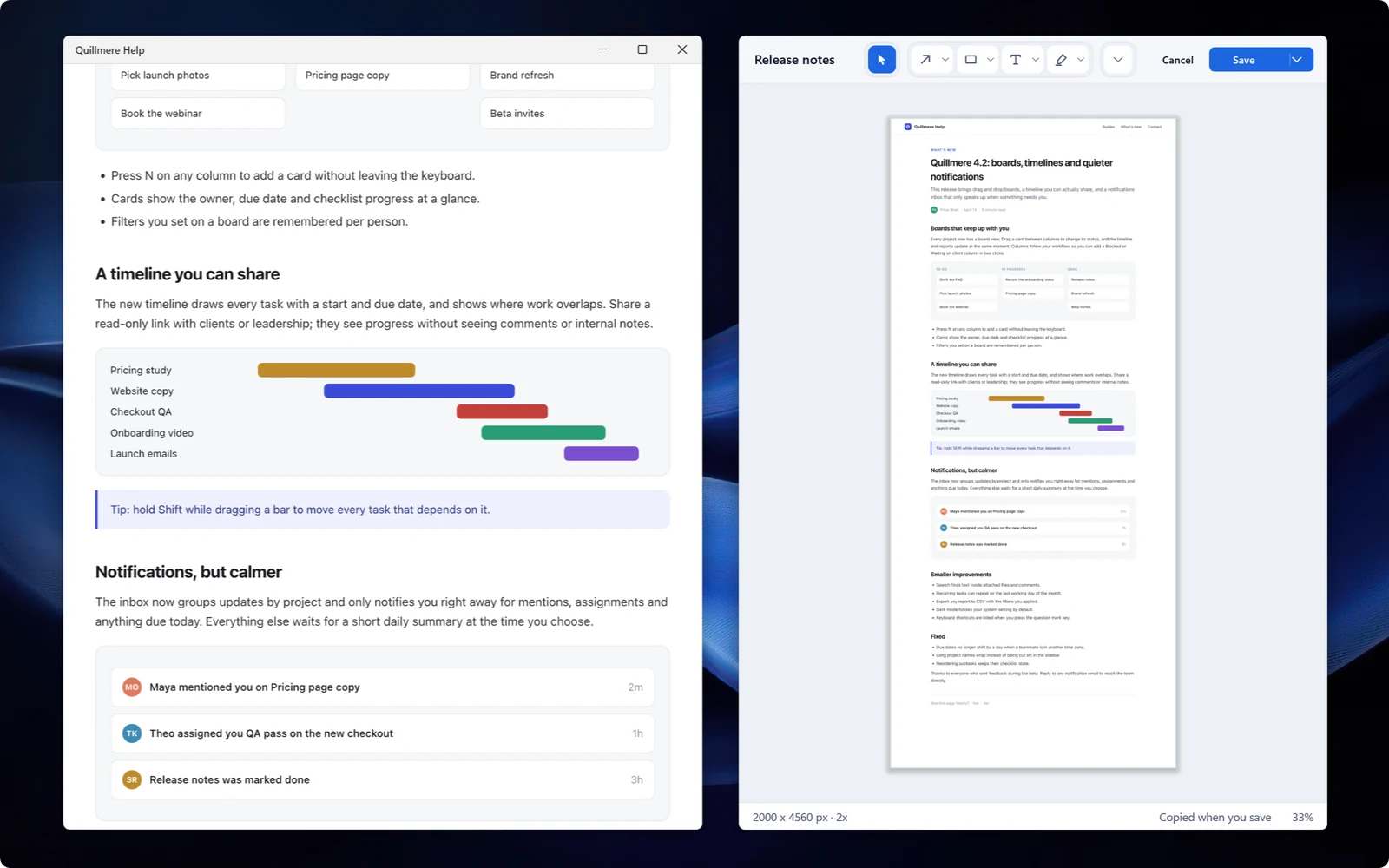
A long web page captured end to end as one tall image on Windows, with the scrolling-capture control visible.
Grab text

Lift the words off anything on screen.

Drag over a window, a PDF, a slide, even a picture of text, and Kestrel reads it into your clipboard as real, editable text. Each grab is kept in your Library as its own item too, so you can search it later.
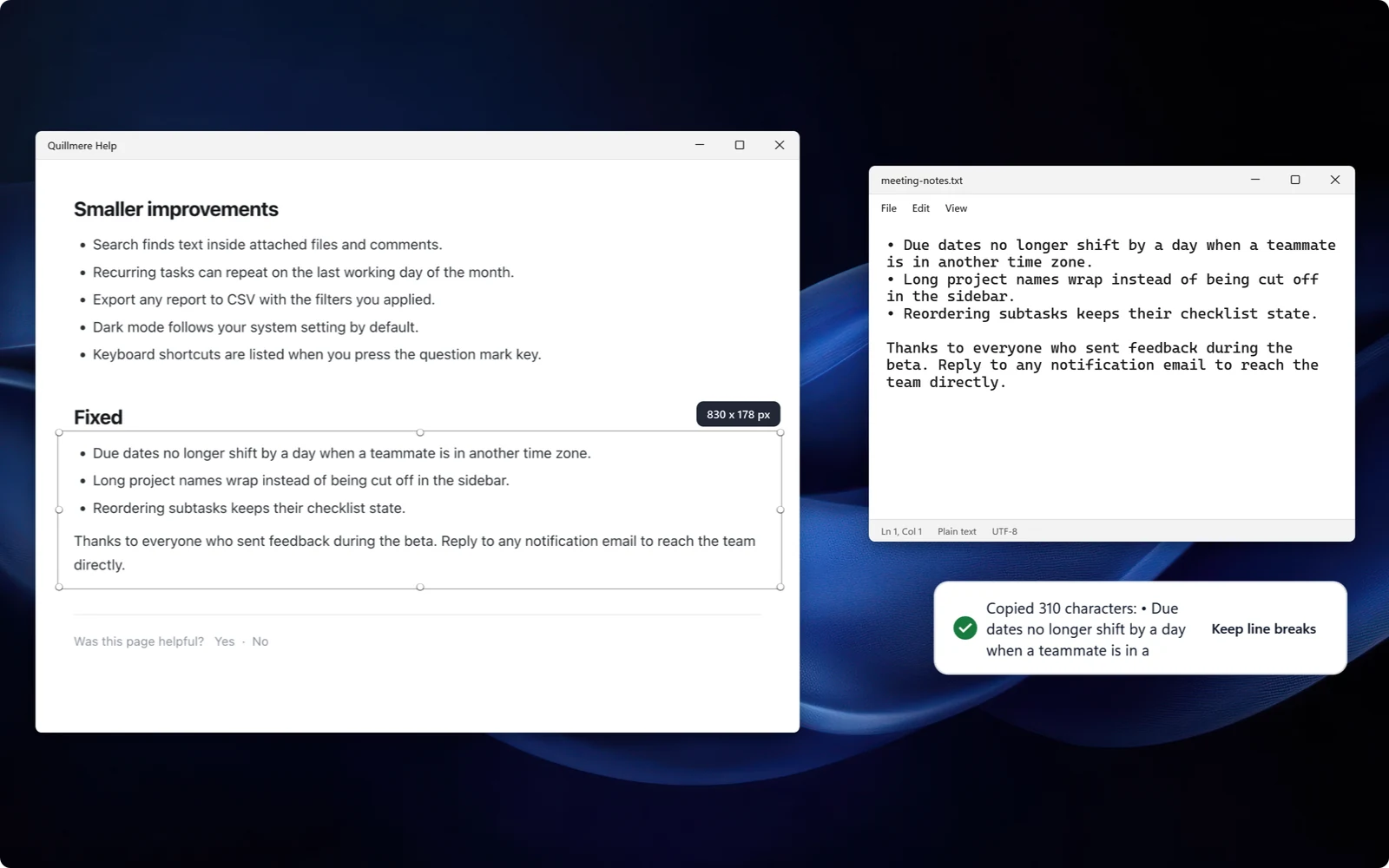
Kestrel reading text from a region of the screen on Windows and placing it on the clipboard as editable text.
The Studio

Mark it up today. Move the arrow next week.

Every capture you save keeps an editable copy beside a normal PNG. Reopen it any time and every arrow, callout and step is still movable. The Studio has 21 tools, including a dimension line that measures in real units, key caps for shortcuts and numbered click markers.
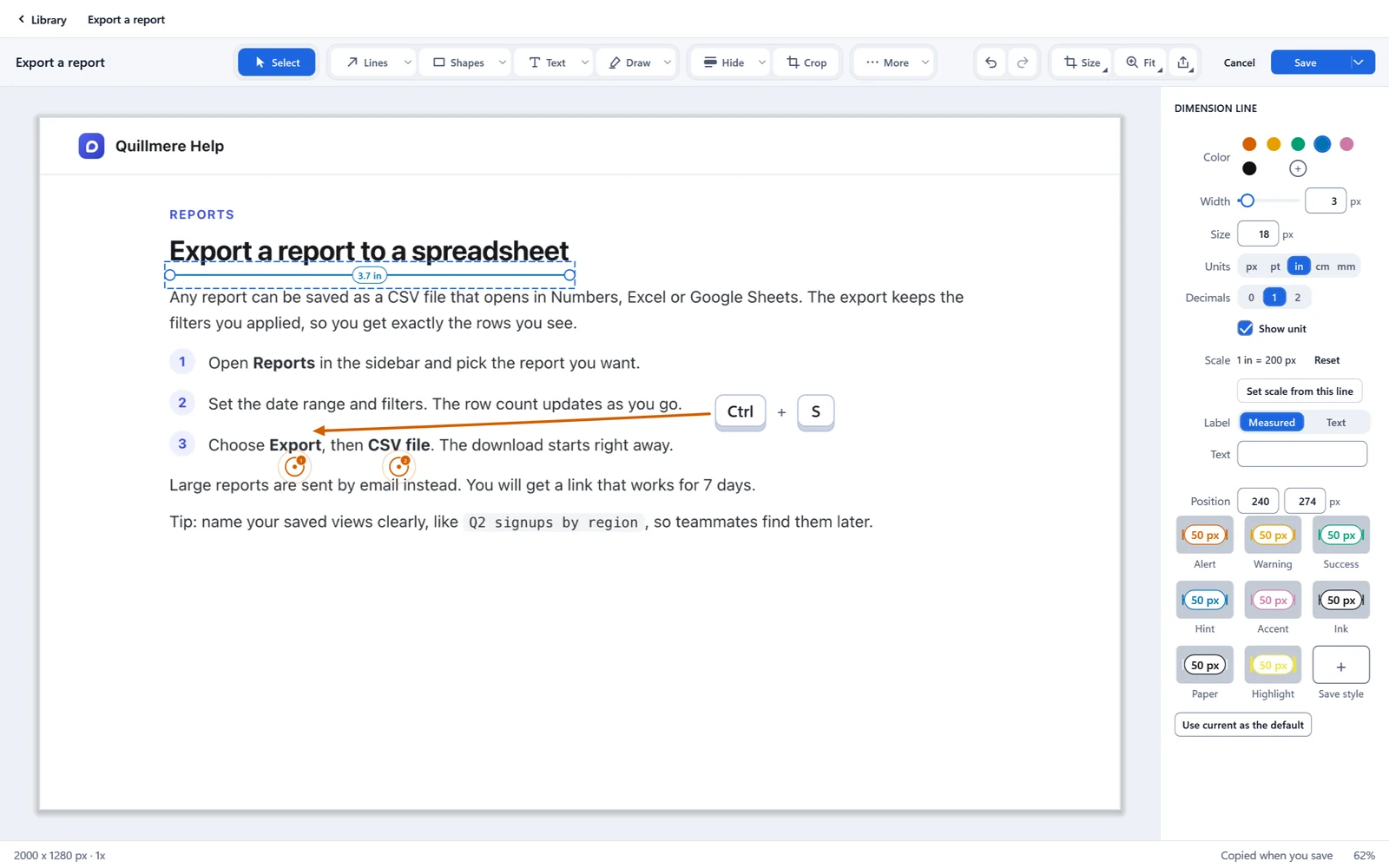
A how-to screenshot open in the Kestrel Studio on Windows, marked up with a dimension line, key caps, numbered click markers and a curved arrow.
Hide what shouldn't be seen

Find the private bits before your reader does.

Pick Black out and Kestrel reads the picture on your PC, then finds emails, phone and card numbers, addresses, API keys and tokens, and any words you add. It seals them into the saved file, so no unredacted original is written.

Detection can miss things, so look before you share.
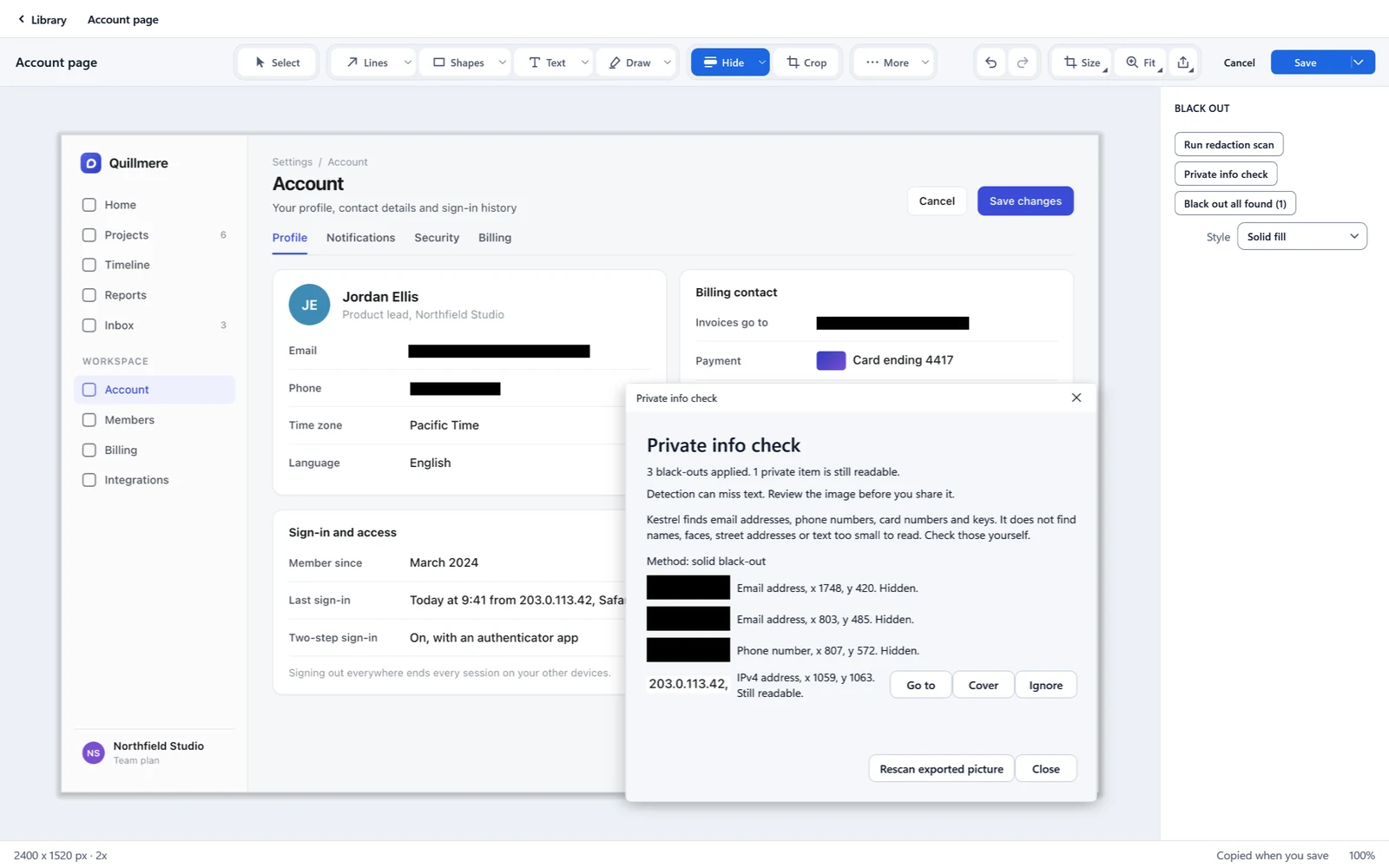
A sample account screenshot on Windows with Kestrel's review window open, showing found items like an email, a phone number and an API key, some already covered.
Record

Record the fix instead of describing it.

Capture a region or a window as video, with system sound and your mic. Trim the ends, drop in notes and arrows that appear only while they matter, and export an MP4 that plays anywhere.
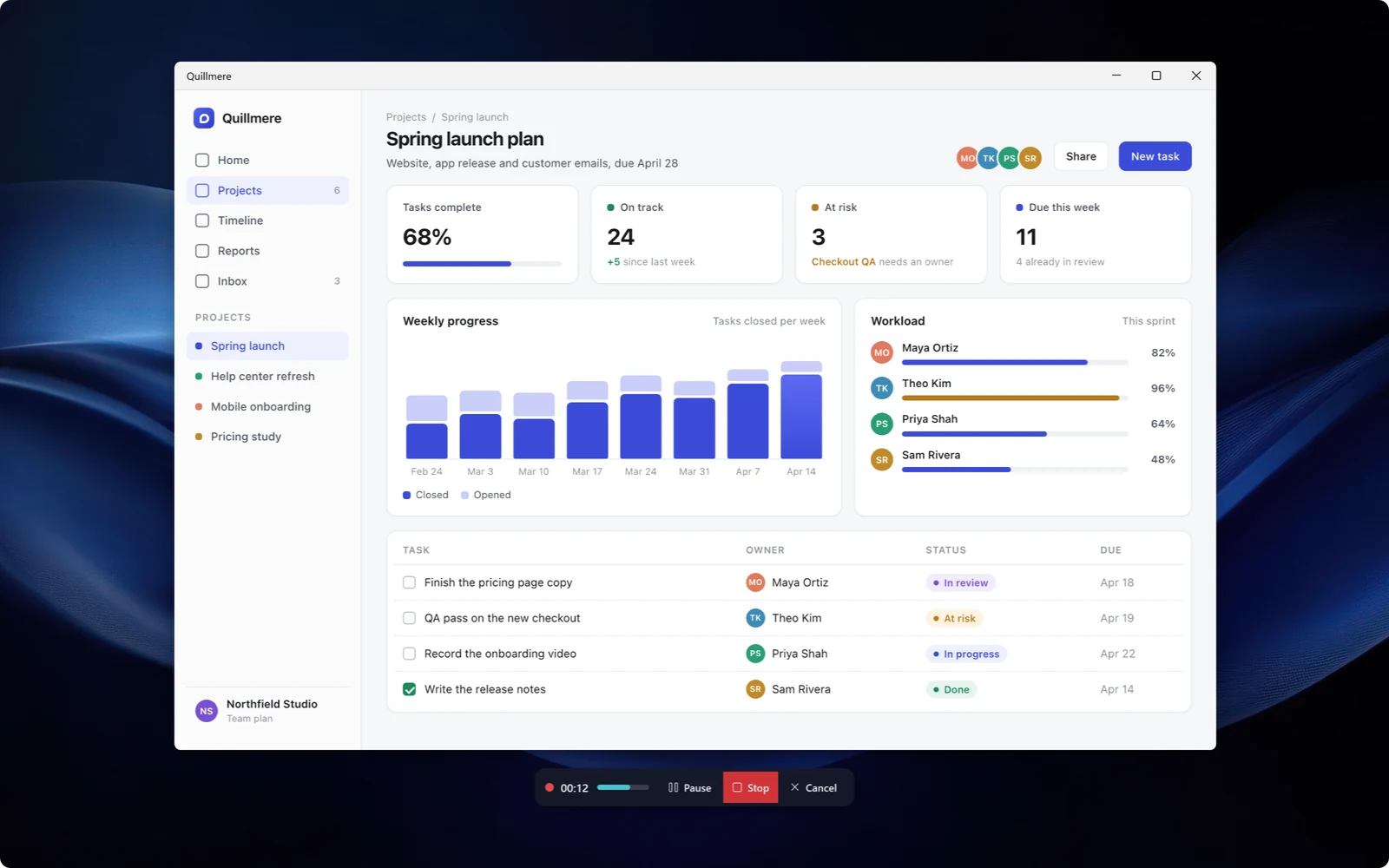
Kestrel recording a region of the screen on Windows, with the recording controls and sound meters showing.
Video in the Studio

Edits that stay editable.

A recording opens in the same Studio as a screenshot. Your callouts, arrows and timing stay live, so you can change the clip next week without recording it again.
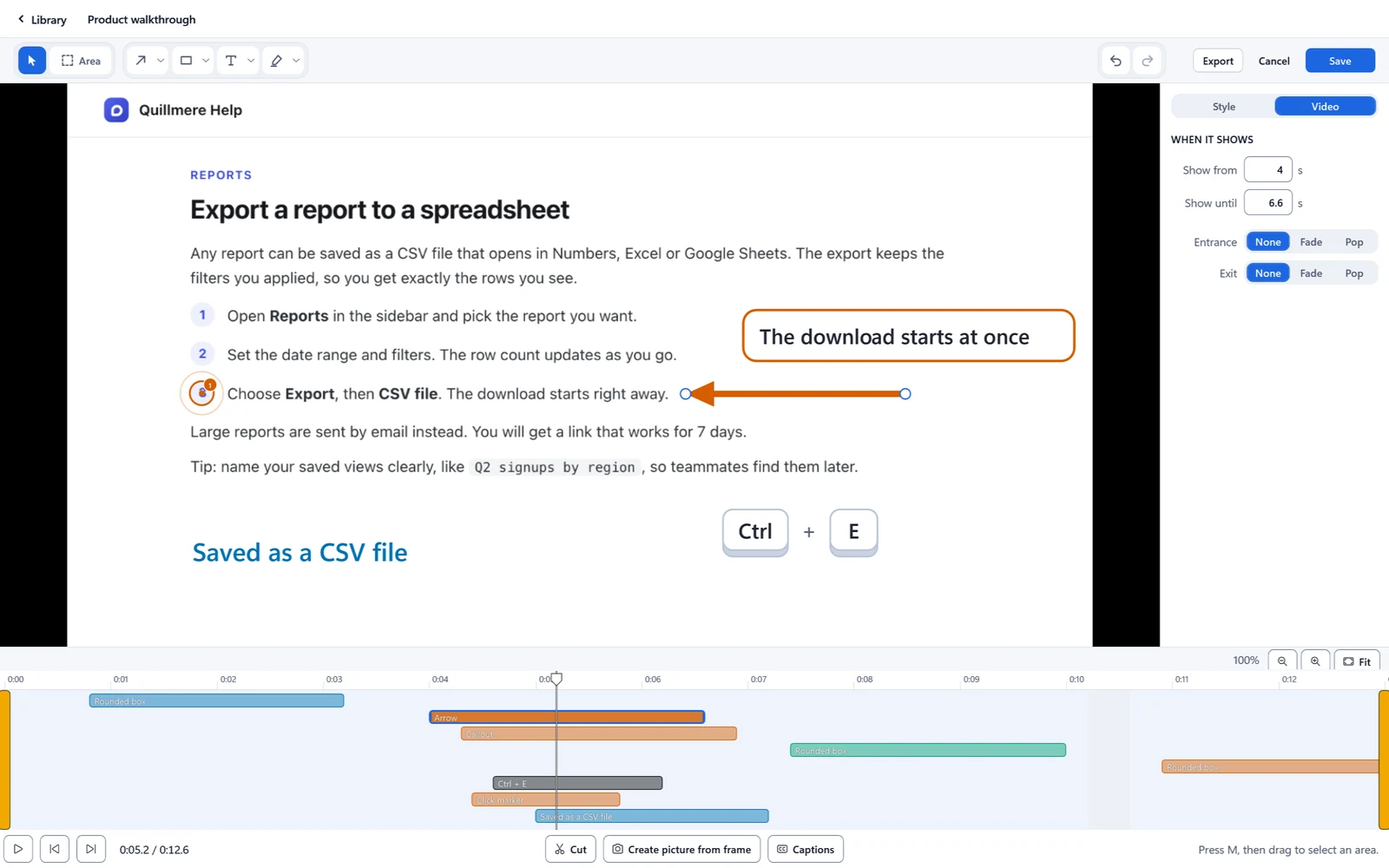
A screen recording open in the Kestrel Studio on Windows, with timed callouts and a trim bar along the bottom.
Your Library

Everything you capture, in one place you can search.

Captures land in a Library you sort into collections. Turn on "add new captures here" and a whole case files itself. Search by the words inside a picture, because Kestrel has already read them.
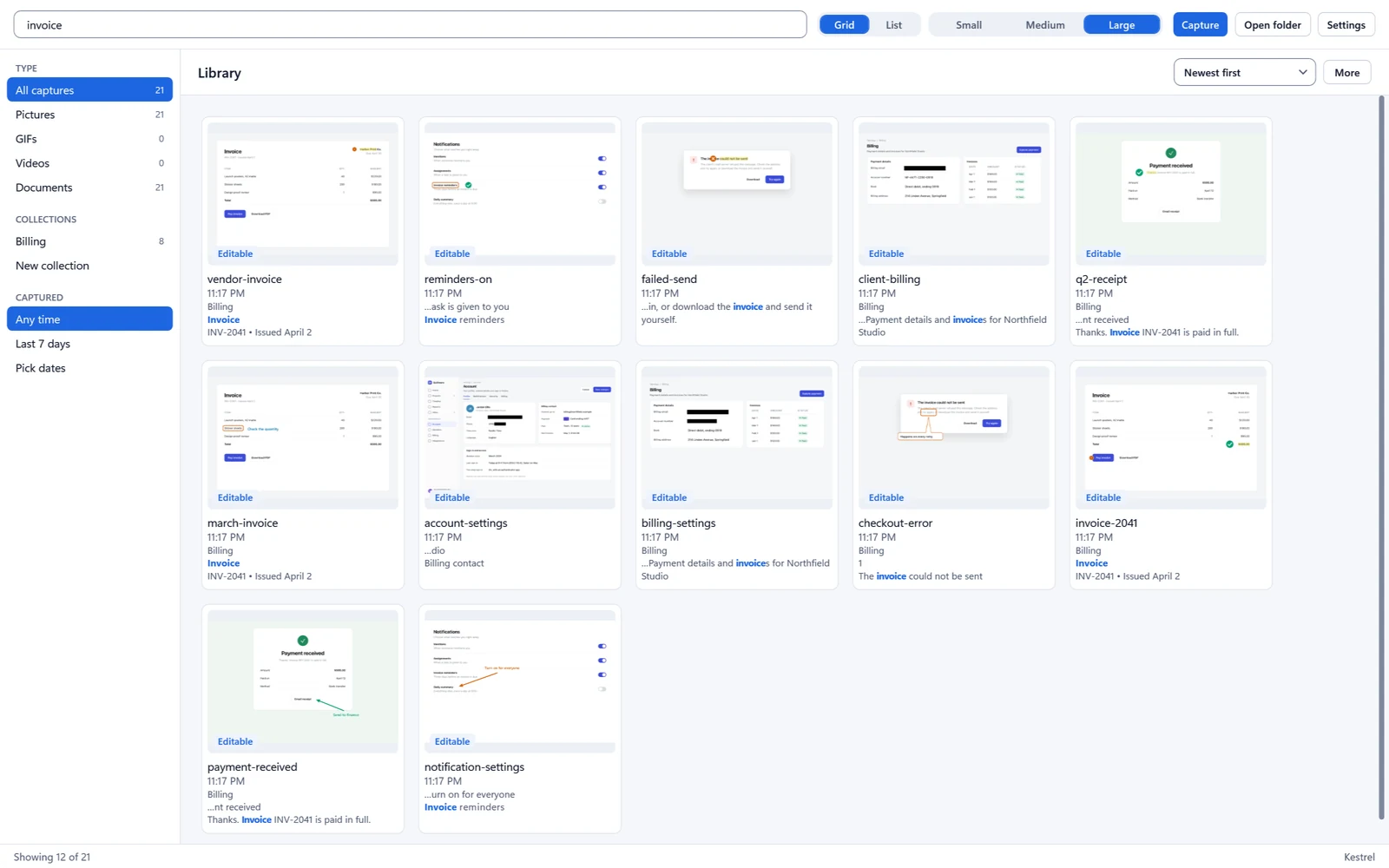
The Kestrel Library on Windows, showing captures grouped into collections with a search box.
Frames

Make a rough shot look finished.

Drop a capture into a window frame, browser chrome or a device, add a background and a soft shadow, and a quick screenshot reads like a product shot.
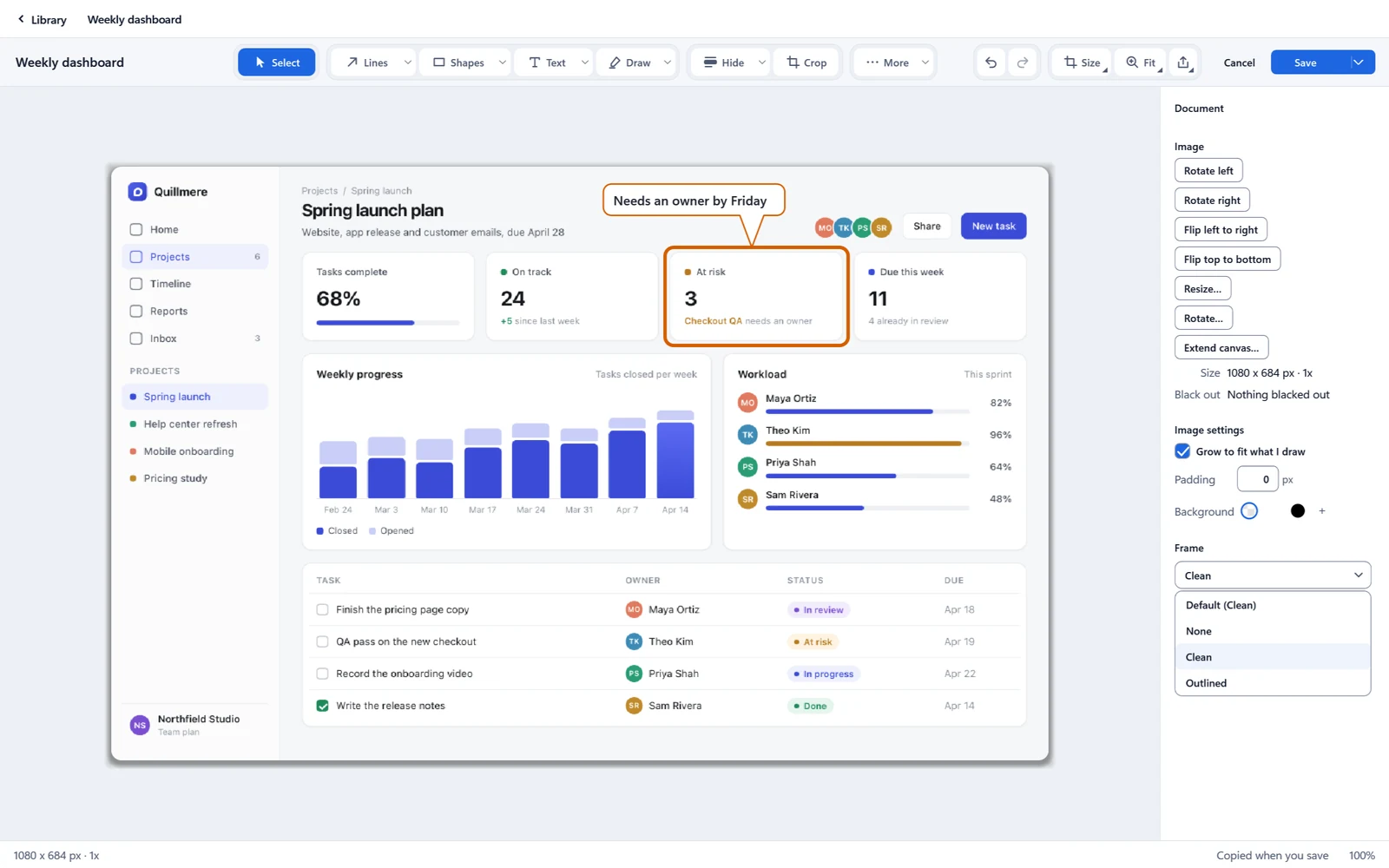
A plain screenshot dressed with a browser frame, background and shadow in Kestrel on Windows.
Magnifier

Point at the small thing that matters.

Zoom into a detail without cropping the context away. A magnifier loupe sits over the shot, so your reader sees the whole screen and the exact pixel you mean at the same time.
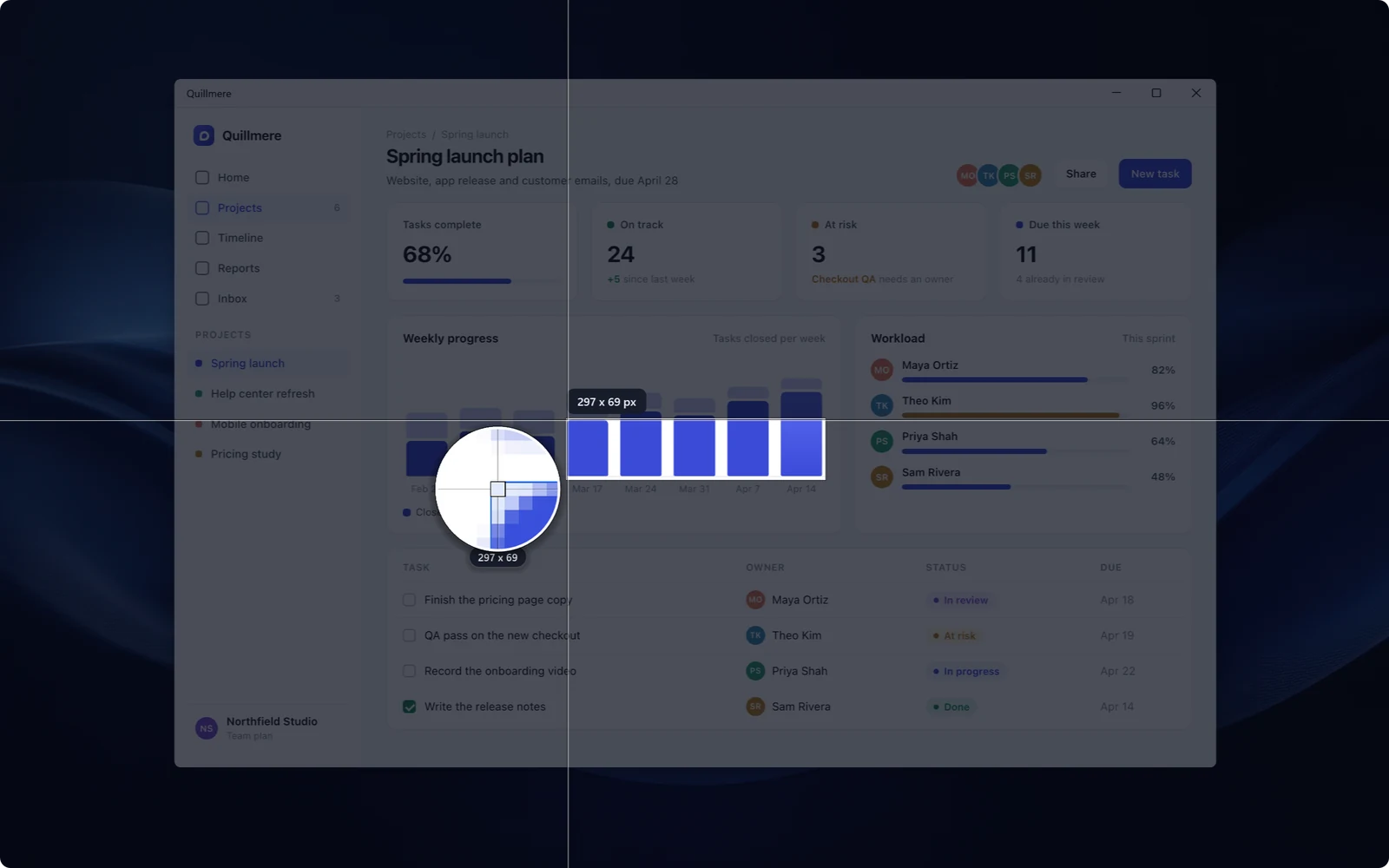
A Kestrel capture on Windows with a magnifier loupe zooming into one small detail of the image.
QR code

Add a code people can scan.

Place a QR code that holds a link or any text, then make it yours: round or square dots, your own colors, a logo in the middle, a “Scan me” frame. Kestrel tells you when a choice is too light or too busy to scan reliably. It stays an editable object, so you can change the link next week without redrawing it.

The link is stored in the code itself. It doesn’t expire, and there are no scan counts.
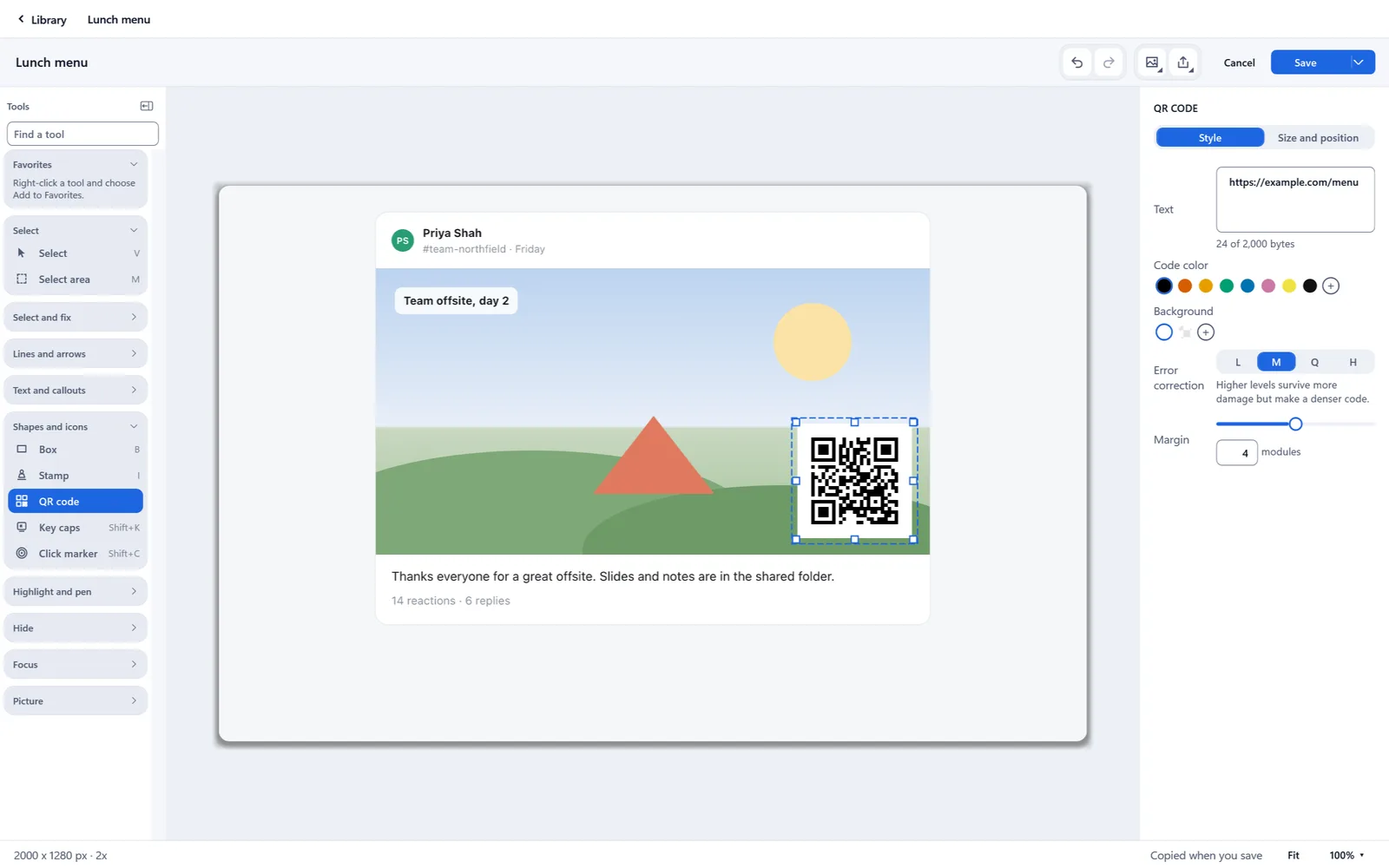
A capture in the Kestrel Studio on Windows with a styled QR code placed on it, showing the color, center-logo and Scan me frame options.
Everything, in one place

The complete feature list.

The sections above are the highlights. Below is the whole set, grouped, with what each one does. A few are still being finished.

New in this release

What changed in the latest Kestrel for Windows and Mac. Each of these has a short walkthrough on the See it in action page.

Windows 0.14.0 and Mac 1.0.0. Unless a feature is marked for one platform, it works on both.

Replace screenshot
Right-click a picture in the Library, choose Replace screenshot, and retake the same area. Your arrows, numbers and callouts move to fit the new picture, and a review shows every change before you apply it. Blur and black out covers are never moved without asking.
Replace text, smarter
Replace text now tells serif from sans and sizes the new words from the old ones. Replace all fits every match, or warns you when one will not fit.
Smart select picks whole objects
Smart select grabs whole buttons, logos and banners instead of fragments, so a saved stamp is the real thing.
My stamps
Your saved stamps get their own section in the Gallery, at the top on Mac. Place, rename and delete them, and search them on Windows.
Picture packs Windows only
Groups of pictures and icons by industry. The download is checked for a valid signature, then works offline, and you can remove a pack any time. Not in the Mac App Store edition.
Move and resize from the keyboard
Arrow keys nudge a mark 1 pixel, Shift makes it 10, and Alt (Option on Mac) with the arrows resizes it. A burst of nudges undoes in one step.
Resize with Shift and Alt
Drag a handle with Shift to keep the shape, or Alt (Option) to resize from the center. QR codes and stamps keep their shape.
Show tips
A short reminder appears a few times when a feature is worth pointing out. The Show tips switch in Settings turns it off.
Next and previous capture keys
Step through your captures from the keyboard: Ctrl and Page Up or Page Down on Windows, Command, Option and the bracket keys on Mac. The shortcuts window now has a Move and resize group.
Text box Windows only
Click for a box or drag its width. Words wrap and the box grows as you type, and older text stays as it was.
Captions in the video Studio Windows only
Paste lines or open an SRT or VTT file, edit them, export SRT or VTT, and choose whether they show in the video. Not written from speech yet.
Callouts and fixes
Elbow callouts no longer cross their own words, and undo works right after you pick a look.
Updates you can trust
Automatic updates are on by default, Kestrel checks once a week when you turn them off, and nothing installs until you say so.

Capture

Take any part of your screen, from one key press or from the capture bar, with the controls to get the edges right.

Taking a screenshot should not need a second attempt. That is why we added a magnifier, edge snapping, one-pixel arrow nudges and a fixed size box from 1 to 16384 pixels. A scroll capture is checked for missing rows, and a problem is noted in the file.

One-key capture
Press one global shortcut and the capture bar appears, ready for you to pick what to take.
Select first, then choose
Drag an area first, then decide on the bar whether to capture it, scroll it, record it or grab its text.
Region capture
Drag out any rectangle on the screen and take exactly that area.
Window capture
Hover a window and click to take it. In Region mode, click empty space to take the whole screen.
Full screen capture
Click to take the screen you are on, or press Return with nothing selected.
Whole-screen shortcut
Give "the screen under my pointer" its own shortcut, separate from the main capture key.
Fixed size capture
Type a width and height from 1 to 16384 pixels and place the box. Kestrel warns if it exceeds the display.
Repeat last capture
Retake the same area with one shortcut, which helps when you shoot before and after pictures.
Capture presets
Save a named setup with its own shortcut and destination, then start it with one key.
Six-choice capture bar Mac only
Pick Region, Window, Full screen, Scrolling, Video or Text on the bar, by click or with number keys 1 to 6.
All screens Mac only
Hold Option in Full screen mode to take every connected display at once.
Taskbar as a target Windows only
Hover the taskbar strip and click to capture it, the way the Mac captures the menu bar and Dock.
Smart selection stepping
Press the Up or Down arrow to move the selection to the parent or child element under the pointer.
Live size readout
While you drag, see the pixel size, plus the scale percent when the display is scaled.
Dim surround
Everything outside your selection darkens, so you can see exactly what you are about to take.
Handles and move
Resize the selection by its handles, or drag inside it to move the whole box.
Edge snapping
A dragged edge jumps to a window edge when it comes within 12 physical pixels.
Arrow key nudge
Move the selection 1 pixel with the arrow keys, or 10 pixels with Shift held.
Capture magnifier
Hold Option (Alt on Windows) to enlarge the pixels under the pointer at 4x, 8x or 16x. It is off by default.
Letter and number keys
On the bar, C or 1 captures, S or 2 scrolls, R or 3 records, T or 4 grabs text.
Tab through modes Mac only
Tab steps through the still capture modes, skipping Video.
Capture delay
Wait 3, 5 or 10 seconds, or type any value from 1 to 60. A countdown shows the numbers.
Include the cursor
Switch on the pointer so it appears in your captures.
Escape cancels
Press Esc at any point while choosing to cancel the capture.
Scroll down capture
Pick an area and Kestrel scrolls it, then stitches the pieces into one tall picture.
Scroll sideways
Capture wide content by scrolling left to right, stitched into a single picture.
Scroll for me or by hand
Choose automatic scrolling, or scroll yourself. Automatic scrolling needs Accessibility permission on a Mac.
Auto scroll speed
Pick how quickly automatic scrolling moves through the page.
Stop at page end or keep going
Stop when the page ends, or let it run until you press Stop.
Stitch check
Kestrel checks the stitched result and warns you if rows look missing.
Scroll recovery panel
When a scroll capture goes wrong, a panel offers a way back. On Windows the answers are Keep and By hand.
Scroll bar trimmed
A moving overlay scroll bar is spotted in the frames and trimmed, with a note in the file.
Text reading while stitching
A small safety net: when matching the pictures fails, Kestrel uses the text to join a scroll capture.
Suggested scroll area Windows only
If your area is bigger than the scrolling pane, the capture is clipped to the pane.
Administrator-window notice Windows only
Automatic scroll cannot reach an app that runs as administrator, so Kestrel says so and offers By hand.
Mixed-scale displays Mac only
A region across displays of different scale is stored at one scale, with a note where parts were enlarged.
Blank capture check
Kestrel notices a blank or black capture and tells you. On Windows it checks scrolling captures only.
Failure note in the file
When a capture had a problem, a visible note is stored in the document. Windows raises these for scrolling captures.
Capture watchdog
A timer notices a capture that hung, so a stuck capture does not leave you waiting.

Select and pick

Pick the parts of a finished picture that matter, then move, copy, save or clear them.

Lifting one button out of a screenshot should take a click. Smart select outlines buttons, text and pictures so you can pick one, and Magic select lets you choose how soft a cut-out edge is. When a pick is not possible, we say why in plain words.

Smart select
Hover a button, card or line of text in a picture and click to pick it. Then move it, copy it, black it out, delete it or save it as a stamp. When you move a pick, Kestrel fills the gap with a best guess.
Action bar beside the pick
A floating bar next to the selection holds the actions, with a keyboard route into it.
Save all as stamps
One action turns every found region into My stamps, with untick, rename and a private-info badge per region.
Copy warning on picks
If a picked part may hold private info, Kestrel offers Copy anyway or Black out first.
Magic select
Click a color and press Delete to make it transparent.
Tolerance slider
Widen or narrow the match from 0 to 100, and see the percent of the picture selected.
Select everywhere
Switch between the connected area and that color everywhere in the picture.
Edge setting
Choose Sharp, Soft or Softer edges on a cut-out, with a step that cleans the fringe.
Transparent areas looks
Show transparent areas as boxes, dots, stripes, plain or none while you edit.
JPEG warning
Kestrel says transparent areas turn white in JPEG and suggests PNG instead.
Plain refusals
Clear messages explain when a pick is not possible: under a Black out, after a crop, or too large.
Select area
Drag to select several objects at once, and hold Shift to add more.

Mark up

Draw on a picture with arrows, shapes, markers, stamps and saved styles, all kept as editable objects.

We keep every mark editable until you export, so a wrong arrow is a small fix, not a redo. Objects snap to each other’s edges within 6 pixels, a dimension line can set the real scale, and the step counter can start at 4 when your guide does.

Arrow and line
Draw an arrow or line with color, width, end style and shadow.
Curved arrow
Draw an arrow with one bend point, with the same color and width options.
S-curve arrow
Draw an arrow with two bends, one each way.
Dimension line
Measure a distance in px, pt, in, cm or mm, with decimals and a label you can set.
Dimension scale
Type the real length of one line and every other line reads in real units.
Box and ellipse
Draw a box, ellipse or rounded box with color, width, fill, opacity, shadow and corner control.
Fill and opacity
Fill a shape from none to any palette color, with opacity from 0 to 100 percent.
Pen
Draw freehand with a chosen color, width and shadow.
Highlighter
Mark text with a marker that keeps its own yellow, separate from the pen color.
Shadow on markup
Add a shadow to arrows, lines, boxes, text and pen strokes.
Spotlight
Dim everything except a box or round area, with dim from 20 to 90 percent.
Magnify
Add a zoomed circle or box that enlarges a detail from 1.5x to 8x.
Key caps
Type Ctrl+Shift+K and get a row of keyboard keys, in a light or dark style.
Click marker
Place a ring that says "click here", with size, an outer ring and an optional number.
Step markers
Numbered circles that count up for you. Click for the standard size or drag for any size.
Marker shapes
Choose Circle, Square, Badge or Pin for step markers.
Leader line
Draw a line from a step marker to its target, for the circle and pin shapes.
Next number
Set the next step number so a guide can start at 4.
Renumber steps Mac only
After you delete a step, Kestrel offers to renumber the rest.
Stamps and marks
Place from 12 solid and 9 outline built-in marks such as Check, Cross, Warning, Info, Star and Heart.
Label chips
Drop a Before, After, Bug, Fixed or New chip onto a picture.
Flair icons
Place any of over 2,000 icons as a stamp, with color, look and a shape behind it.
Search flair
Type a word such as lock or arrow to find the icon you want.
My stamps
Add your own PNG, JPEG or SVG stamps with a button or by dragging them in, or save shapes you pick with Smart select.
Stamp search words
Every built-in stamp carries search keywords, so a typed word finds it.
Pointer and key art
Pick cursor art and keyboard key art from the stamp picker, in Mac and Windows looks.
Favorites
Save a tool with its style as a favorite. Keep up to 12, reorder them and rename them.
Style gallery
See live previews of every preset for a tool, three to a row.
Save style
Save the current look of a tool as a named style.
Set as default
One button makes the current look the tool’s default for next time.
Quick styles
Set one color and font theme once and use it across every tool.
Themes
Choose Ocean, Forest, Sunset, Plum or Graphite, each with its own highlighter color.
Color palette
Pick named colors such as Alert, Warning, Success and Ink, chosen with color-blind readers in mind.
Colors named by meaning
Colors carry the name of what they mean, and Favorites use the names, such as "Red arrow".
Style pack Mac only
Export and import your styles and swatches as one plain zip, with no account.
Hex color entry Mac only
Type a hex value for a color in the click style panel.
Eyedropper
Pick a color from anywhere on your screen, on every color choice.

Text and callouts

Add words to a picture, point at things with callouts, and fix or swap text that is already in it.

Words in a screenshot go out of date. We read the font, size, weight and color from the picture so Replace text can fix a typo or swap a name, price or number with a close match. If the new text runs wider or the background is busy, we warn you before you apply it.

Text tool
Add text with a size from 6 to 400, bold, italic, underline, color and shadow.
Text shadow
A soft shadow sized from the font size keeps text readable on busy pictures.
Font choices and search
Pick a font from a list you can search.
Text spacing slider
Set paragraph gaps from 0 to 100 in the text editor. At 0 every line is kept.
Rich paste
Paste text that is all bold, italic, underlined or one color into an empty text box, and rich paste keeps that bold, italic, underline and color.
Edit text with F2
Press F2 (Windows also Enter) to edit a selected text, key cap, callout or label.
Finish with Cmd+Return Mac only
Press Cmd+Return to finish even while typing inside a text box.
Callout styles
Choose from five looks: Bubble, Label, Tag, Elbow and Numbered.
Callout tail
Drag the tip to point anywhere, and set fill, alignment and grow-with-text.
Callouts with three pointers
One callout can point at up to three things at once.
Numbered callout
Place callouts that carry a number and an optional leader line.
Callout style gallery
Preview all five callout looks in a gallery before you choose.
Replace text
Click a line of text in a picture and retype it, with font, size, weight and color matched from the picture.
Replace text style controls
Adjust the font, size, weight, color and alignment of the replacement text.
Replace text checks
Return applies and Esc cancels. Kestrel warns when the new text is wider or the background is busy.
Replace all
Fix a typo or swap a name, price or number everywhere it appears, from one sheet.
Replace with sample data
Swap real names, emails and numbers for realistic invented ones.
Private text note
When a line looks like private info, Kestrel notes that the change goes into the picture itself.
Grab text
Select an area and pull its words out as text you can paste or keep.
Grab text copy format
Copy as plain text only, or plain plus formatted, which keeps tables and headings when pasted into Word or Excel.
Table-aware Grab text
Kestrel finds a grid in the picture and writes the cells out in order.
Keep line breaks
Choose whether Grab text keeps each line break or joins lines into paragraphs.
Grab text from a tall picture
A long picture is read in overlapping tiles, and repeated lines at the seams are removed.
Keep grabbed text
Grabbed text is saved to your Library as a plain file. On by default, with a switch to turn it off.

Hide private info

Cover or soften what should not be seen, and scan a picture for the kinds of details people forget.

Hiding details starts with saying plainly what each tool does. Black out is a solid fill, Blur says it softens rather than hides, and the scan tells you it can miss things. We ask before saving when flagged text is still readable, and you can add your own words to look for.

Black out
Cover an area with a solid fill, or choose Pixelate or Blur. Review the picture before you share it.
Blur tool
Soften a box or ellipse with a strength from 1 to 40. Blur softens, so it does not hide text.
Weak blur warning
If a blur may still be readable, Kestrel says so and suggests more strength or a solid fill.
Run redaction scan
Scan a picture for emails, URLs, card numbers, IP addresses, phone numbers and API keys. Detection can miss things, so check.
Black out all found
Cover every match the scan found with one click.
Review one by one
Step through the matches, and anything you ignore keeps its mark on a rescan.
Detector switches
Turn each detector on or off: API key, URL, email, card, IPv4, IPv6 and phone.
Private words
Add your own list of words and patterns, such as names and IDs, to treat as private.
Allow list
Edit the words the private info check never flags, from a row in Settings. Detection can miss things, so check before you share.
Review gate
Kestrel asks before saving when flagged text is still readable, and Save anyway is offered.
Redaction report
Keep an optional record of what was covered, where and when.
Rescan exported picture
Check a saved picture again for any matches left over after covering.
Copy warning on a region
Copying an area that may hold private info warns you first.
Black out text items
Text items turn emails, phones, card numbers and keys into asterisks in the file. It is off by default.
Private badge on text items
A badge marks Library text items that contain private info.
Window title token
A file name token for the window title reads Untitled when the picture holds a Black out.

Effects and canvas

Frame, crop, resize and arrange a picture, then undo and redo whatever you tried.

A finished picture is often a crop and a frame away. Frames carry rounded corners from 0 to 48, a soft shadow and a thin border, and a default frame is added on the way out without touching your saved file. We also made the join after a Cut out one jagged seam with no gap.

Frames
Add rounded corners (0 to 48), a soft shadow, a thin border and a fill for formats with no transparency.
Built-in frames
Start from None, Clean or Outlined, and keep up to 8 frames, named and duplicated as you like.
Default frame
A default frame is added on the way out to any picture without its own. Saved pictures are not changed.
Copy without frame
A switch and an Include frame choice give you the plain picture.
Frame many pictures
Select pictures in the Library and apply one frame to all of them.
Frames on video
A video can carry a picture frame too, so recordings match your screenshots.
Torn edge
Give a picture a torn edge on all four sides, the same every time.
Torn join after a cut
Remove the middle of a picture and the join is one jagged seam, with no gap.
Transparent canvas growth
Draw past the edge and the canvas grows with a transparent background you can change.
Crop
Crop with live feedback, aspect choices from Free to 16:9, and typed position and size.
Cut out
Remove a band of rows or columns from the middle of a picture and join the rest.
Resize image
Resize a picture to a size you type.
Rotate picture
Turn the picture by 90 degrees, or to any angle.
Flip
Flip the picture left to right or top to bottom.
Extend canvas
Add space around the picture so there is room for notes and arrows.
Output size menu
Choose Original, a preset or Custom, with fill, fit, stretch or crop modes and a background.
Zoom levels
View at Fit, 25, 50, 100, 200 or 400 percent, with menu shortcuts for zoom in, out and actual size.
Pan and zoom a big picture
Use the wheel, trackpad or scroll bars to move around a large picture.
Select and move
With any drawing tool, press on something you drew to select it, never the picture under it. Select reaches inside hollow boxes.
Select all
Press Cmd or Ctrl+A to select every object.
Tab through objects
Tab and Shift+Tab select the next or previous object.
Nudge objects
Move a selected object 1 pixel with the arrow keys, or 10 with Shift.
Move by exact pixels Mac only
Press Cmd+Shift+M and type the offset to move an object.
Nudge menu Mac only
Eight menu items move the selection one or ten pixels in each direction.
Position and size fields
Type X, Y, width and height for any placed object.
Align
Line up two or more objects left, center, right, top, middle or bottom.
Distribute
Space three or more objects evenly, horizontally or vertically.
Group and ungroup
Press Cmd or Ctrl+G to group objects, and add Shift to ungroup.
Layer order
Bring objects forward, send them backward, or move them to the front or back.
Snap and smart guides
Objects snap to the edges and centers of others within 6 pixels, with guide lines. A setting turns it off.
Rotate any object
Rotate by handle or by typing degrees from -180 to 180, with 90 degree turns and Reset.
Rotate 15 degrees
Press [ or ] to rotate the selection in 15 degree steps.
Duplicate
Press Cmd or Ctrl+D to duplicate the selection.
Copy, cut and paste objects
Use the standard clipboard commands for markup objects.
Paste in place
Press Option+Cmd+V to paste an object where it was copied from.
Paste as new
Make a new picture straight from what is on the clipboard.
Undo and redo
Undo with Cmd or Ctrl+Z, redo with Shift. There is no step limit by default.
Compact undo history
Undo snapshots share storage, so memory grows with what changed, not with every step.
Keyboard drawing cursor Mac only
With a drawing tool, arrow keys move a cursor and Enter sets a point, so you can draw without a mouse.

Create

Make a QR code from a link or text, style it, and keep editing it until you export.

A QR code you place should still be one you can change later. We made ours an editable object with a live byte counter up to 2,000 bytes, error correction from L to H, and a hint when your colors may not scan. Adding a logo forces the highest correction level.

QR code tool
Click to place a 160 pixel code, or drag to place a square of your own size.
Start a new QR picture
Choose Create, then QR code, to open a new 600 pixel white picture holding one code.
Link or text
Type up to 2,000 bytes of link or text and watch a live byte counter.
Error correction
Choose level L, M, Q or H for how much damage the code can tolerate.
Code and background colors
Set the code color, and a white, transparent or custom background.
Margin
Set the quiet border around the code from 0 to 8.
Scan hint
A hint appears when your chosen colors may not scan.
Stays square
The code keeps its square shape when you resize it.
Module shape
Draw the code with square, rounded or dot modules.
Eye shape and color
Style the three corner eyes as square, rounded or circle, and color them to match or contrast.
Gradient
Blend the code into a second color at an angle of 0, 45, 90 or 135 degrees.
Label bar
Add a Scan me or Scan to open label under the code.
Logo in the middle
Place a picture from a file, the clipboard or your Library on a padded square in the center.
Logo from a web address
Fetch a logo from an address you type. Fetching contacts that address. Not in the Mac App Store edition.
QR defaults
Set as default remembers your QR style for next time, but never the logo.

Library, collections and search

Keep captures as plain files you can sort, tag, search and group, with nothing locked away.

Your captures are files in a folder you chose, with tags stored inside the picture file and no hidden database. We warn you if the folder is Pictures or Desktop, and the search index is safe to delete because it rebuilds itself. Deleting asks whether to keep the file or move it to the Trash.

Library of plain files
Pictures live in folders you choose, with no hidden database.
Change the library folder
Pick where captures save, and change it any time you like.
Broad folder warning
Kestrel warns if you pick Pictures, Desktop or your user folder as the library.
Grid and list
Switch between a grid and a sortable list with Name, Type, Collections, Captured and Size columns.
Thumbnail size
Show Library thumbnails at Small, Medium or Large size.
Recents row
A scrolling row of recent captures has jumps to the first and last.
Filters
Narrow by type, collection and capture date, from Today to a range of dates you pick.
Documents filter
The Documents filter also matches pictures that have an editable copy.
Search
Search by file name, tag, or the words inside a picture with Cmd+F, also from the Studio.
Search inside pictures
Kestrel builds a text index of your pictures on this computer and shows progress while it indexes.
Index text switch
Turn text indexing off in Settings if you do not want it.
Rebuildable index
The index is safe to delete and rebuilds itself, with a Rebuild button.
Tags saved in the file
Tags are stored in the picture file itself, not only in an index.
Details strip
See the facts about the selected capture at a glance.
Warning badge
A capture that carries a warning is flagged in the Library.
Open pasted or dropped pictures
Paste a picture from the clipboard, or drop an image file, to edit it.
Select and copy several
Click to select, double click to open, and copy several pictures at once.
Drag within the Library
Drag pictures onto collection rows to add them. Videos are skipped with a note.
Drop panel
Drop pictures onto the Library to bring them in. On Windows the grid and collection rows take drops.
Filmstrip
Open the previous or next capture with Option+Left or Right, in the Studio too.
Delete choices
Remove a picture from the Library and keep the file, or move it to the Trash or Recycle Bin, with Undo.
Overwrite guard
Save on a Library picture replaces it, and Save as new says it keeps the original.
Backup and integrity check
Back up to a folder you choose, and check the library for problems.
Synced folder warning
Kestrel warns once if a folder syncs elsewhere. On Windows this covers the backup folder.
Damaged files list
One window lists every damaged library file with its path and the reason.
Copy as a file keeps originals Windows only
Copying pictures as files puts temporary copies on the clipboard, so a Cut in Explorer never moves your own file.
Text item facts
Text items show counts and line facts in the details strip.
Inline video player
Play a video in the Library with a seek bar, Space to pause and arrow keys to seek 5 seconds.
Video poster tiles Windows only
A video tile shows a frame about one second in, or the first frame if that one is black.
Collections
Group pictures in a named set with a note, a cover and an order you choose.
Add new captures to a collection
One switch sends every new capture into the active collection.
Smart collections
A collection fills itself from up to 12 rules joined by all or any, such as captured in the last 30 days.
Save filter as collection
Turn a Library search or filter into a collection.
Captions per picture
Each picture in a collection can carry a caption.
Collection note and cover
Add a note of up to 2,000 characters and choose a cover picture.

Record video

Record your screen with sound, camera and visible clicks, with safeguards for the moments that go wrong.

Nobody wants to find out afterward that the microphone was muted. We warn you while you record if the microphone is muted, show a countdown, and offer a crashed recording back. The pointer and each click are recorded as data, so you can restyle them later.

Screen recording
Record an area, a window or the whole screen.
Record from the bar
Pick an area, then choose Record on the capture bar.
System audio
Record the sound your computer plays, alongside your screen.
Microphone
Choose a microphone, watch a level meter and set its sensitivity.
Muted-mic alert
A warning says your microphone is muted while you record.
Audio reminder Mac only
A reminder about audio settings appears before you record.
Recording consent notice
The first time you record, a notice covers audio, camera and screen.
Recording countdown
A countdown shows before a recording starts, so you can get ready.
Recording indicator
A clear on-screen sign shows while you record.
Recording hotkeys Windows only
Use a keyboard chord to pause and stop a recording, with P to pause and S to stop.
Saved notice
When a recording is saved, a note offers Open, Trim, Share and Show in folder.
Crash recovery
If Kestrel closes mid-recording, the recording is offered back. Disk and audio-sync checks run too.
Frame rate
Choose a frame rate to set how smooth the recording looks.
Cursor highlight
Highlight the pointer in the recording so viewers can follow it.
Click effects
Show a click as a Ripple, a Focus pulse or a Lock, saved as data you can change later.
Pointer as an editable lane
The pointer is recorded as its own lane, drawn on top of everything, so you can edit it.
Keystrokes on screen
Show the keys you type, with an option to show all typing.
Camera
Record your camera with mirror, quality and device choice.

Edit video

Trim, speed up, zoom and annotate a recording in the Video Studio, without recording it again.

Fixing a recording should not mean recording it again. In the Video Studio you can slow a part to 0.25x or speed it to 16x and choose what happens to the sound, hold a frame for up to 30 seconds, and zoom to each click with one button. We name every edit in the undo menu.

Trim
Set the start and end of a video by dragging the amber handles.
Cut out the middle
Remove a section from inside a video and join the two ends.
Eight join styles
After a cut, pick a plain cut, crossfade, whip pan, zoom punch and more, with a preview.
Timeline lanes
Each note, arrow and marker gets its own lane, with zoom and a scrub bar.
Speed
Slow down or speed up a marked part from 0.25x to 16x. Up to 200 changes fit in one video.
Sound at changed speed
Choose Auto, Keep or Mute for sound in a sped-up part. Keep works up to 4x.
Hold a frame
Press F and the picture stays still while the clock runs, for up to 30 seconds each.
Zoom and pan
Zoom into part of the picture by hand, with Level, Ease in, Ease out and when it shows.
Zoom to each click
One button builds zoom regions from your clicks and groups nearby ones, ready for you to adjust.
Follow the pointer
A zoom can track the path of the pointer.
Soft-zoom warning
Kestrel warns when a zoom will look soft because the recording lacks pixels.
Click sound
Add a Tick or Tap to every click at a chosen level, with a preview. Mixed in on export.
Edit clicks
Change, add or remove a click without recording again, or pick one click style for all.
Pointer edits
Edit the pointer lane right in the Studio.
Notes for a time range
Add notes, arrows and markers that show only for the time you choose.
Animated callouts
Callouts that draw themselves in and out of a video: 12 types and 39 motions, with a motion picker that previews on hover, and favorites.
Titles and marks for video
Add a lower third or a title bar to a video, plus circle, highlight, key badge, underline and checkmark marks.
Camera in the Studio
Edit the camera layout and timeline, and export it with the video.
Caption editor
Edit caption lines, open SRT or VTT files, and export SRT and VTT.
Captions from sound Mac only
On the Mac, Kestrel makes captions from the sound of the recording.
Frame from video
Make a picture from any frame of a video.
Named undo steps
Every Studio edit names its undo, such as Change speed or Add zoom.
Edits kept from newer versions
A video with edits from a newer Kestrel keeps them untouched and says so.
Studio tool rail
A tool rail for the Studio, with folds.

Export and share

Save, copy and share in the format you need, with names and metadata under your control.

A file name should never be a surprise. We turn illegal characters into a dash, give reserved names a suffix, keep names under 200 characters and fill an empty name with Untitled, and the naming pattern shows a live preview. Save as new starts from name copy, never copy copy.

PNG
Export as PNG, the format to choose when you want transparent areas kept.
JPG
Export as JPG with a quality slider. Transparent areas turn white, and Kestrel tells you.
WebP
Export as WebP with a quality slider.
TIFF
Export as TIFF from the same Export as window.
HEIF
Export as HEIF with a quality slider. On Windows this needs the HEIF codec installed.
PDF
Export a picture as a PDF from the Export as window.
MP4 video
Export a recording as an MP4 from the export panel.
Animated GIF
Export a recording as a GIF from the same panel.
GIF size target
Aim for a file size such as 5 MB, and see a live estimate as you adjust.
Export as window
Press Cmd+Shift+E and choose the format from a chooser. The Windows shortcut was not checked.
Scale on export
Export at a scale you choose instead of the original size.
Metadata off by default
Flattened exports strip metadata, and a setting keeps it if you want it.
Edited note
A note on the export tells you that it contains edits.
JSON sidecar
Write an optional plain data copy of the markup beside the picture.
Naming patterns
Name files with tokens for date, time, counter, app, window title, display, user and tag, with a live preview.
Safe file names
Illegal characters become a dash, reserved names get a suffix, and an empty name becomes Untitled.
Save and keep editing
The Save chevron holds Save as new and Save and keep editing.
Save as new naming
Save as new starts from "name copy", never "copy copy", and keeps a name you typed.
Done copies and saves
Return saves and copies in one step. The status bar says "Copied when you save".
Cancel asks once
The discard dialog says the file stays as it was.
Share
Open the system share sheet for a picture or a video.
Copy picture
Copy as a picture, using the flat copy rule.
Copy a selected area
Copy just one region of the picture instead of the whole thing.
Export panel
Choose MP4 or GIF in one panel, with Done and Save at the top right.
Capture destination
For each setup, choose to edit in the Studio, copy only, or save only.
Open editor after capture
A switch decides whether the Studio opens after a capture.
Copy every capture
A switch copies each capture to the clipboard.
Quick copy
Hold Control as you finish to copy the picture and save nothing. A toast says it was not saved.
Saved note
After a save without the Studio, a note offers Edit, Copy and Show in Library.
Capture info stamp
Add the app, web address and date to the picture. The Mac can read the browser address.
Collection to folder or zip
Export a collection in order to a folder or a zip, with captions.
Collection to PDF
Export a collection as a PDF, with a page size choice and captions.
Step guide HTML
Export a collection as a step guide in HTML.
Slideshow video
Turn a collection into a video with caption fades and eight joins between slides.
Print with exhibit numbers Mac only
Print one capture per page, with the capture date and optional exhibit numbers in the footer.

Settings and shortcuts

Rebind keys, find any setting, find any tool, and keep the app tuned to how you work.

Shortcuts are easier to use when you can find them. Press ? for a list of every shortcut and Cmd or Ctrl+K to find a tool by name. We warn about clashes when you rebind a key, and a Changed filter in Settings shows only what you altered.

Rebind shortcuts
Press the keys you want for capture, whole screen, repeat and Grab text. Kestrel warns about clashes.
Single-key shortcuts Windows only
Print Screen, Scroll Lock, Pause and F13 to F24 can each be a shortcut alone.
Shortcut sheet
Press ? to open a list of every shortcut, or use the Keyboard shortcuts window.
Studio shortcut sections
Shortcuts are grouped as Capture, Library and Studio window, Studio tools and Editing.
Tool rail
Tools sit in families down the left side. Click uses the last tool in a family and the chevron lists the rest.
Find a tool
Press Cmd or Ctrl+K, or use the box on the rail, and type a tool name. Favorites rank first.
One letter per tool
V is Select, A is Arrow, T is Text, R is Black out, and every other tool has its own key.
Tooltips name the key
Each tooltip shows the family, the tool and its key.
Rail folds and remembers
The rail collapses and each group card folds, and Kestrel remembers it between sessions.
Tools menu Mac only
A menu lists every tool with its key. Windows has the rail and the Ctrl+K palette instead.
Classic tool order Mac only
A tool-order mode with Control plus letter keys on the Tools menu.
Settings search
Type in a search box to find any setting.
Changed filter
Show only the settings you have changed from their defaults.
Reset this page
Reset a settings page to its defaults, and undo the reset.
Light and dark
The Studio follows the system or lets you choose Light, Dark or Automatic.
Menu bar or tray
Kestrel lives in the menu bar on a Mac or the tray on Windows, with icon switches on the Mac.
Open at login
Start Kestrel when you sign in. It is off by default.
Library in the taskbar Windows only
Show the Library in the Windows taskbar, with a switch in Settings.
First-run tour
A setup wizard walks through permissions, shortcut, magnifier, license and a story.
Select, then choose tip
A first-run tip explains select first, then choose, and goes away with Got it.
Permission guide Mac only
Kestrel names the exact System Settings pane and opens it, and handles re-prompts after OS updates.
Health check Mac only
Explains in plain words what the system needs to allow.
Autosave
Unsaved edits are saved in the background on a schedule.
Recovery after a crash
If Kestrel closed unexpectedly, your work is offered back.
What’s new
In-app notes with arrows to older versions and a jump list.
Support file and crash report
Kestrel writes a support file and a crash report, and never sends one on its own.
Copy support info
One button copies the facts support needs, ready to paste into a message.
Feedback from the tray Windows only
Send feedback from the Help menu in the Windows tray.
Studio window shrinks back Windows only
The window widens for the Studio toolbar and returns to its earlier size when you leave.
Markdown base URL Mac only
Set a base address for links in Markdown output.
Matching dialogs
Confirmations and prompts share one look, with a button named for what it does.

Privacy and trust

Your files stay readable, licenses work offline, and Kestrel lists what it sends.

If a license ends, you can still open, edit, save and export your files, and only new captures pause. We publish the file format, keep an editable copy beside each saved picture, and list the network requests Kestrel makes in a log you can read. Licenses check offline, with no account.

Open and export after a lapse
If a license ends, you can still open, edit, save and export your files. New captures pause.
Lapse notice
A banner tells you when a trial or license has ended.
Offline license check
License signatures are verified offline, with no account.
Activate by file or paste
Drag a license file in, choose it, or paste the key. It works with the network off.
License screen
See your license, version rights and update eligibility in plain words.
Buy and enter license
Buy, enter a license, get it again, or save a copy.
EULA
The license agreement is shown and your acceptance is recorded in Settings.
App Store plan and restore Mac only
See your plan and use Restore purchases in the App Store edition.
License for all users Mac only
Apply one license to every user of the Mac.
License refresh and auto renew Windows only
Refresh your license from inside the app and set it to auto renew.
Updates
Updates are automatic or manual, with a weekly check and a notice, and you can roll back to the previous version.
Update install safety
Updates carry a signed manifest and install on restart or quit.
Editable copy
Every saved picture keeps an editable copy, so marks reopen as marks.
Documented file format
The format is published as a spec, in versioned JSON you can read without Kestrel.
Same file, both platforms
One file renders the same on Mac and Windows. A few features are on one platform only.
Newer files open read-only
A file from a newer version opens read-only with a notice, and nothing is dropped.
Unknown items kept
Unknown stamps and sidecar keys are kept, not deleted.
Keep editable copy switch
Choose in Settings whether to keep the editable copy.
Open other formats
Open PNG and other picture files in the Studio.
Reduced open
A file with problems opens in a reduced mode instead of failing.
No account
There is no account to create and nothing to sign in to.
No tracking by default
Kestrel ships with no telemetry or analytics switched on by default.
Network master switch
One switch turns off all of Kestrel’s network requests.
Network log
Every request the app makes is listed in one place you can read.
Data-flow page
A page in Settings describes what leaves the computer.
Reading text on the device
Text reading, captions and scans run on the device.
Clipboard history choice
Choose whether a copy may reach clipboard history. On Windows, copies always opt out.
File name privacy note
A note warns that naming tokens appear in the file name, which recipients can see.

Accessibility

Controls built to work from the keyboard, with a screen reader, and with typed numbers instead of dragging.

We aimed to make the main editing jobs work from the keyboard. Tab moves through objects, arrow keys nudge them, F2 edits text, every slider has a typed number, and rotate, size and position have fields as well as handles. We will publish a full accessibility statement once we have tested with assistive technology.

Keyboard-operable editor
Tab through objects, move with arrow keys and edit with F2.
Screen reader names
Tool tiles, objects and the selection are announced, and the Hide tile names the tool it shows.
Voice control names
Tool names are the visible words, so you can say what you see.
Picture description
Add alt text to a picture, stored with it, and copy it with a button.
Larger text
Scale the app’s own text up so it is easier to read.
Reduce motion
A motion setting lets you choose reduced motion.
Typed numbers for sliders
Every slider also has a typed number field, so you can set exact values.
No drag-only controls
Rotate, size and position all have typed fields as well as handles.
Keyboard drawing without a mouse Mac only
On the Mac, arrow keys move a drawing cursor and Enter sets a point.

See the whole thing in action.

Short, narrated walkthroughs show every one of these in a real workflow.

Watch the walkthroughs